Nikon Imaging Cloud භාවිතා කිරීම සඳහා අවශ්ය පියවර
- සේවාව භාවිතා කිරීමට Nikon ID එකක් සෑදිය යුතුය සහ Nikon Imaging Cloud සමඟ ලියාපදිංචි විය යුතුය. https://imagingcloud.nikon.com/
- ලියාපදිංචිය සම්පූර්ණ කර කම්පියුටරයක හෝ smart device එකකින් sign in වන්න, කැමරාව සම්බන්ධ කිරීමට පෙර.
- සවිස්තරාත්මක උපදෙස් සඳහා Nikon Imaging Cloud online help බලන්න.
අමතර අවශ්යතා:
- Nikon Imaging Cloud භාවිතා කිරීමට Web Browser අවශ්ය වේ.
- කැමරාව සහ Nikon Imaging Cloud සම්බන්ධ කිරීමට Wi-Fi අවශ්ය වේ.
- කැමරාව දැනට තිබෙන ජාලයක (ගෘහ ජාල ඇතුළු) සම්බන්ධ කරගැනීමට wireless router එකක් භාවිතා කරන්න.
කැමරාව සම්බන්ධ කිරීම – Nikon Imaging Cloud
කැමරාව:
Network menu එකේ [Nikon Imaging Cloud] තෝරන්න සහ 2 ඔබන්න.
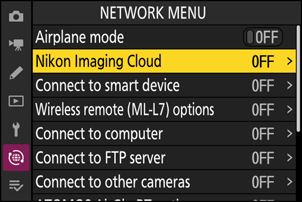
කම්පියුටරයක හෝ smart device එකකින් Nikon Imaging Cloud වෙත ප්රවේශ වීමට QR කේතයක් සහ URL එකක් පෙනේ.
කැමරාව:
පෙන්වන dialog එකේදී, OK Button ඔබන්න.

කැමරාව:
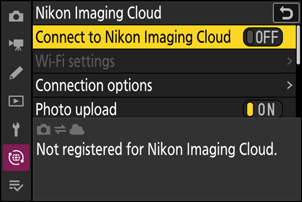
[Connect to Nikon Imaging Cloud] සඳහා [ON] තෝරන්න.
කැමරාව:
[Search for Wi-Fi network] තෝරන්න සහ OK Button ඔබන්න.
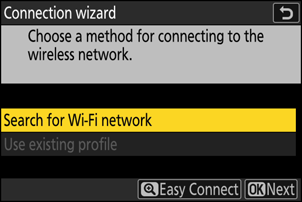
කැමරාව අවට ක්රියාත්මක Wi-Fi ජාල සෙවීම ආරම්භ කරයි සහ නාමය (SSID) අනුව ලැයිස්තු ගනී.
“Easy Connect” (පහසු සම්බන්ධය)
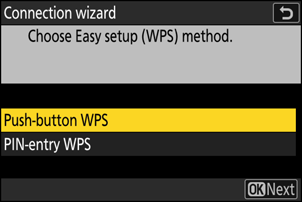
SSID හෝ Encryption Key එකක් ඇතුළත් නොකර සම්බන්ධ වීමට, Step 4 හිදී Zoom + Button ඔබන්න. පසුව පහත විකල්ප වලින් එකක් තෝරන්න සහ OK Button ඔබන්න. සම්බන්ධ වූ පසු Step 7 වෙත යන්න.
| විකල්පය | විස්තරය |
|---|---|
| [Push-button WPS] | Push-button WPS සහාය දක්වන Routers සඳහා. Router එකේ WPS බොත්තම ඔබන්න, පසුව කැමරාවේ OK Button ඔබන්න. |
| [PIN-entry WPS] | කැමරාව PIN එකක් පෙන්වයි. එය පරිගණකයක් භාවිතා කර Router එකේ ඇතුල් කරන්න. Router ලිපිගොනුව බලන්න. |
ජාලයක් තෝරාගැනීම
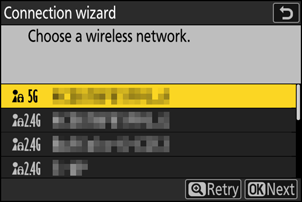
- ජාල SSID එක තෝරන්න සහ OK Button ඔබන්න.
- කැමරාවෙන් ඇතුළත් කළ නොහැකි අක්ෂර සහිත SSID නොපෙනේ.
- Band එක සංකේතයක් ලෙස පෙන්වයි.
- ආරක්ෂිත ජාල (Lock Icon) සංකේතයෙන් පෙන්වයි. එවැනි එකක් තෝරන විට Encryption Key එක ඇතුල් කරන්න.
- අරක්ෂිත ජාල සඳහා, Step 8 වෙත යන්න.
- අවශ්ය ජාලය නොපෙනේ නම්, Zoom + Button ඔබා නැවත සෙවීම කරන්න.
Hidden SSIDs:

- Hidden SSID ජාල හිස් entry ලෙස පෙන්වයි.
- එවැනි entry තෝරන්න සහ OK Button දෙවරක් ඔබන්න.
- පසුව SSID එක ඇතුල් කරන්න. Zoom + Button ඔබන්න.
- Encryption Key එක ඇතුල් කරන්න.
Encryption Key ඇතුළත් කිරීම
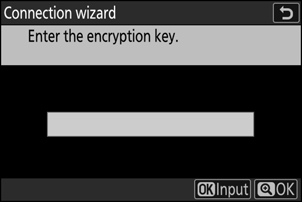
- OK Button ඔබා Encryption Key එක ඇතුල් කරන්න.
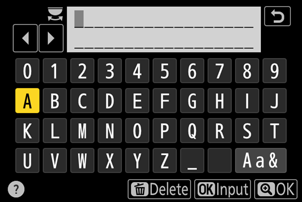
- සම්පූර්ණ වූ විට OK Button ඔබන්න.
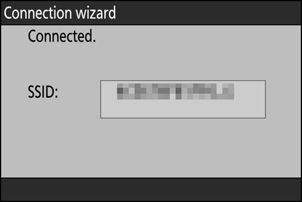
- Zoom + Button යලි ඔබා සම්බන්ධතාවය ආරම්භ කරන්න. සම්බන්ධ වූ විට පණිවිඩයක් පෙන්වයි.

IP ලිපිනය ලබාගැනීම / ඇතුල් කිරීම
විකල්ප:
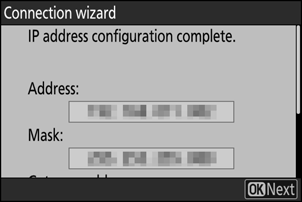
- [Obtain automatically] – ජාලය IP ලිපිනය ස්වයංක්රීයව ලබා දේ. සම්පූර්ණ වූ පසු “configuration complete” පණිවිඩයක් පෙන්වයි.
- [Enter manually] – IP Address, Subnet Mask, Gateway Address, DNS ලිපිනය මැනුවල් ලෙස ඇතුල් කරන්න.
කැමරාව:
“configuration complete” පණිවිඩය පෙන්වූ විට OK Button ඔබන්න.
Nikon Imaging Cloud සම්බන්ධය සකස් කිරීම
කැමරාව Nikon Imaging Cloud වෙත සම්බන්ධ වීමට සූදානම් කර QR කේතයක් සහ URL එකක් පෙන්වයි.
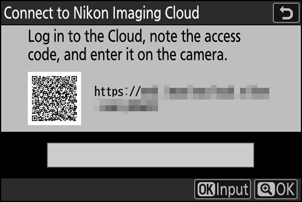
Computer/smart device:
Nikon Imaging Cloud මුල් පිටුවේ connect camera බොත්තම ඔබන්න. Access code එකක් පෙනේ.
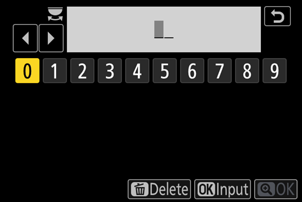
කැමරාව:
Access code එක ඇතුල් කරන්න. OK Button ඔබා, පසුව Zoom + Button ඔබන්න. සම්බන්ධ වූ විට QR කේතයක් සහ URL එක නැවත පෙන්වයි.
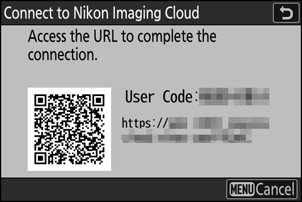
Computer/smart device:
කැමරාවේ පෙන්වෙන QR කේතය scan කරන්න හෝ URL එක browser එකේ ඇතුල් කරන්න.
- Connection confirmation screen පෙන්වයි.
- User-code entry screen පෙනේ නම්, කැමරාවේ පෙන්වෙන code එක ඇතුල් කරන්න.
- [Connect] ඔබන්න.
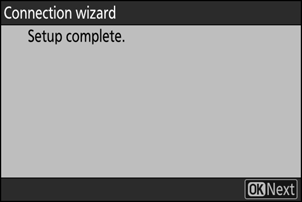
සම්බන්ධතාව සම්පූර්ණය
Nikon Imaging Cloud සහ කැමරාව දැන් Wi-Fi හරහා සම්බන්ධ වී ඇත.
Computer/smart device එකේ සහ කැමරාවේ “connection complete” පණිවිඩය පෙනේ නම්, ඔබට දැන් Nikon Imaging Cloud සමග කැමරාව භාවිතා කළ හැක.